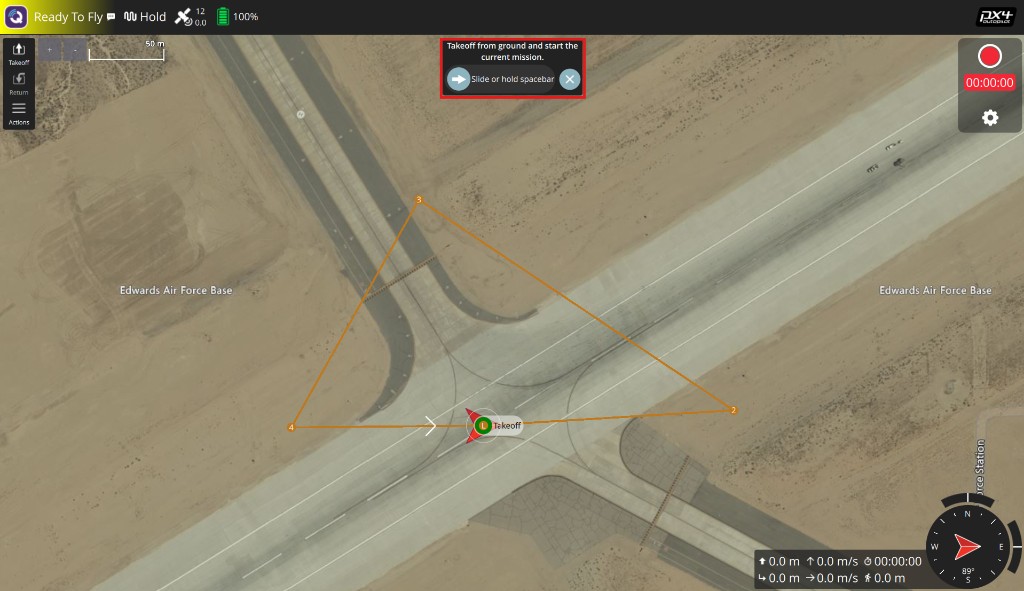
SITL simulation with PX4
Start PteroSim, spawn the aircraft (e.g. F450) while the simulation is stopped, then press Start on the simulation panel. You may start PX4 SITL before or after starting the simulation; lockstep engages once PX4 connects.
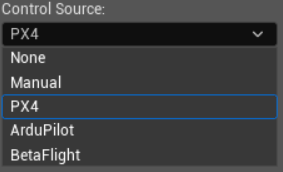
In the control source panel choose PX4:
Run PX4 SITL on Linux/WSL with lockstep and put your Ubuntu IP address in
[IP-address]:PX4_SIM_HOSTNAME=[IP-address] PX4_LOCKSTEP=1 PX4_SIM_SPEED_FACTOR=1 make px4_sitl none_iris
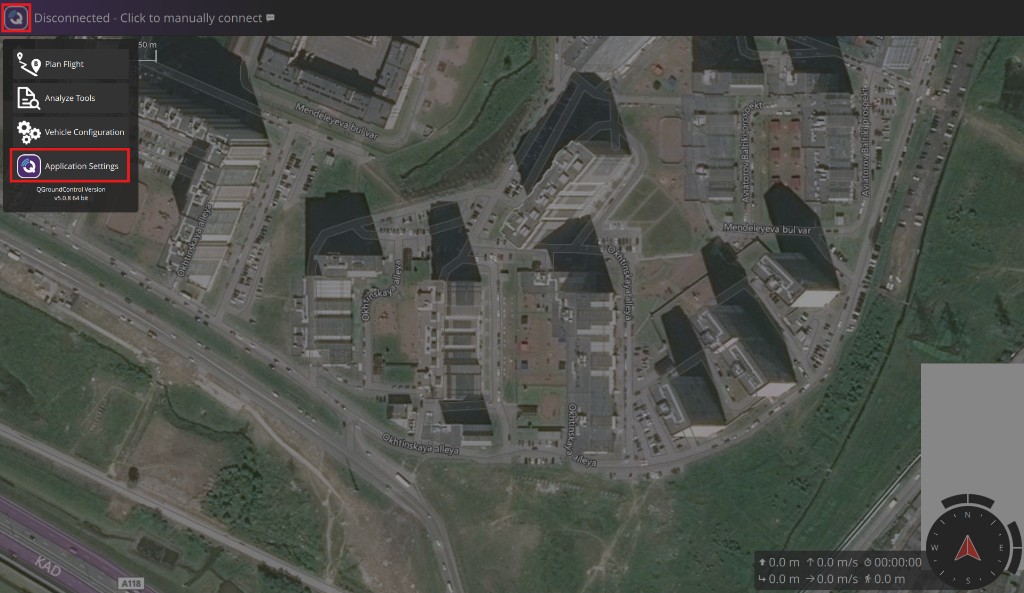
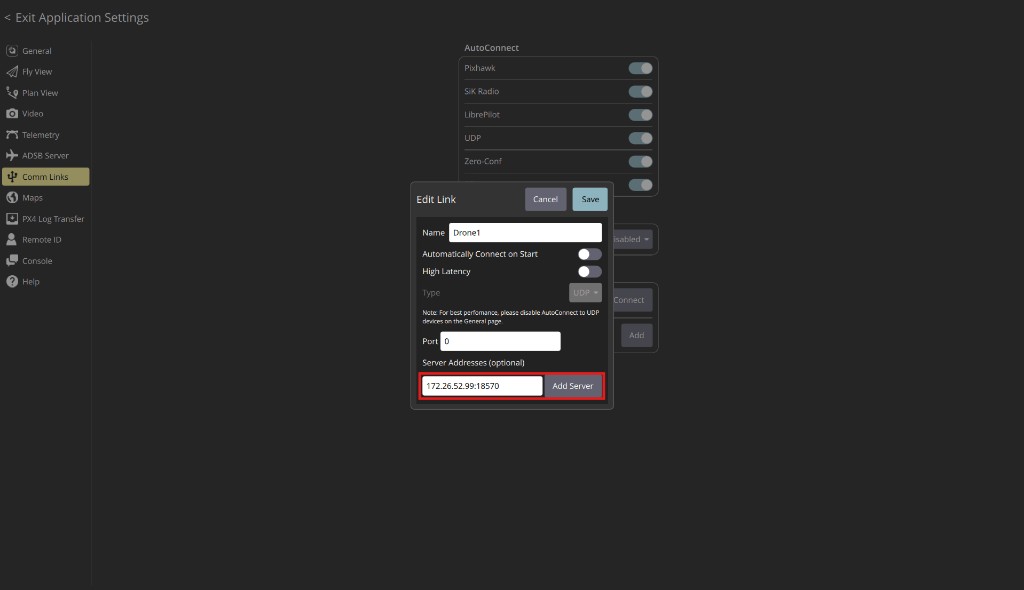
Launch QGroundControl and open Application Settings:
Add or edit a Comm Link to your PX4 instance (UDP to the machine where SITL runs, typically port 14550):
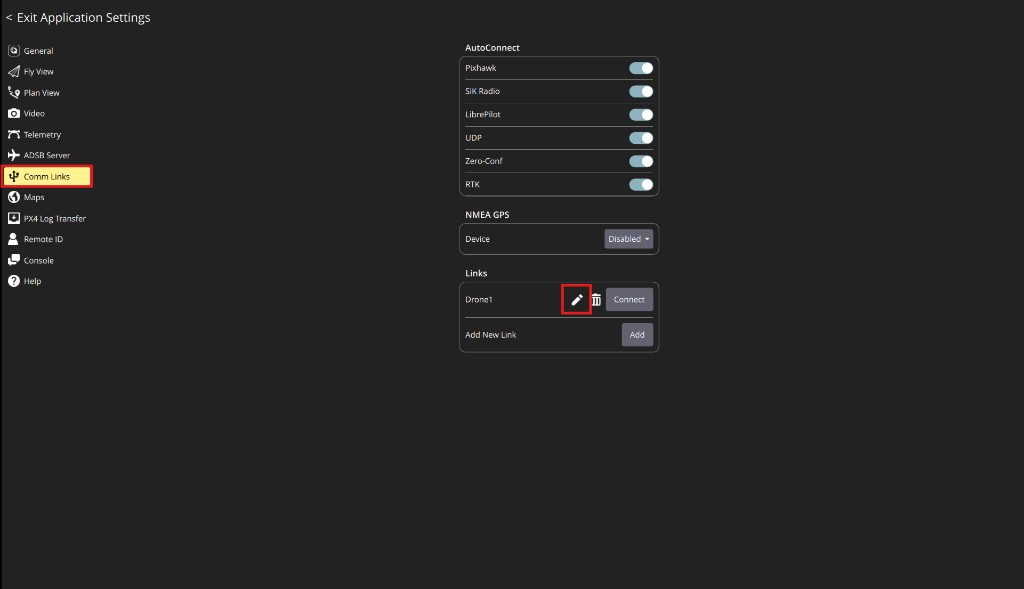
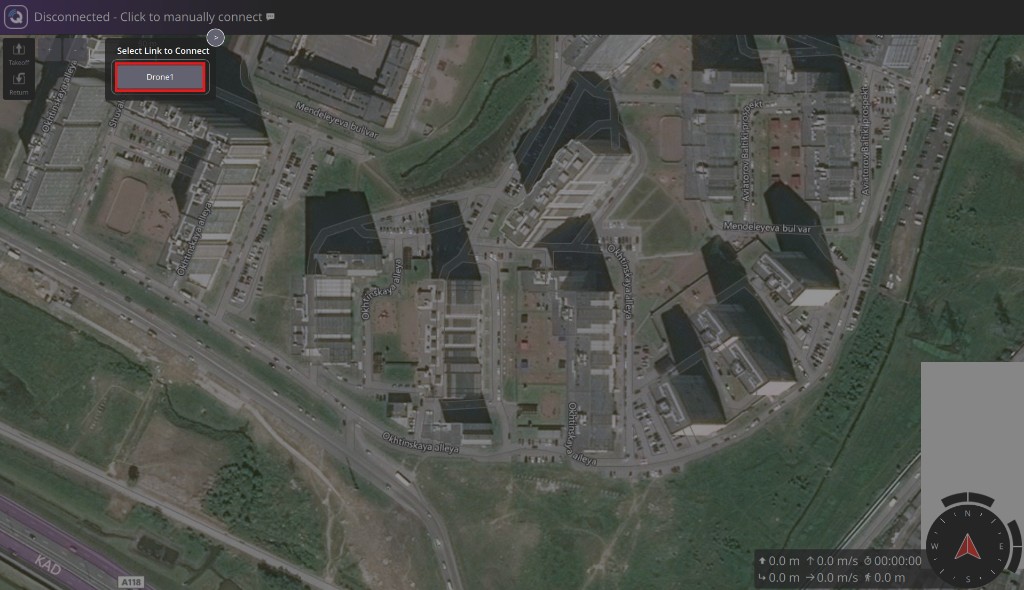
Manually connect using the configured link:
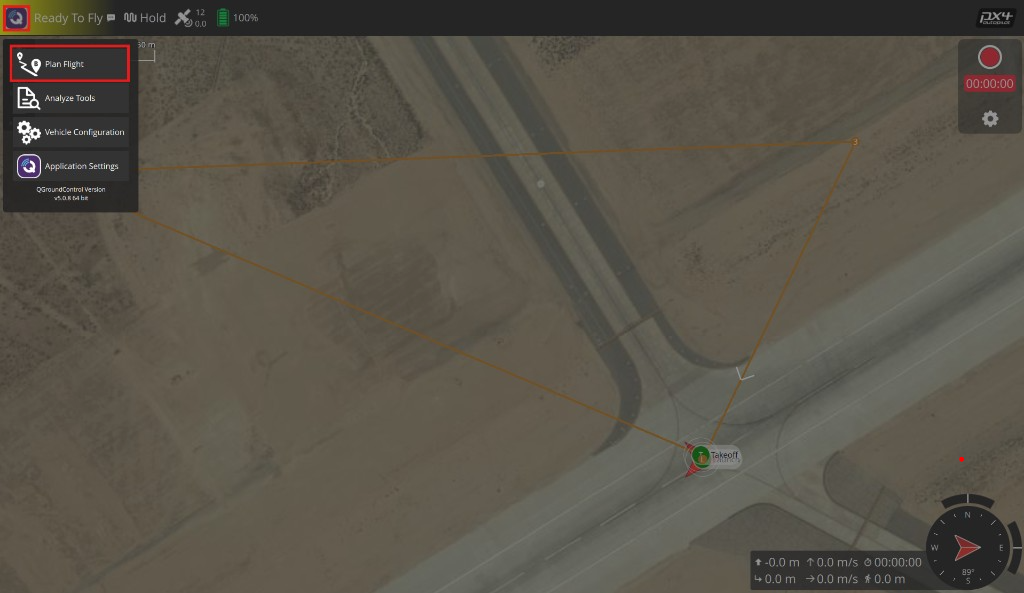
Head to Plan Flight:
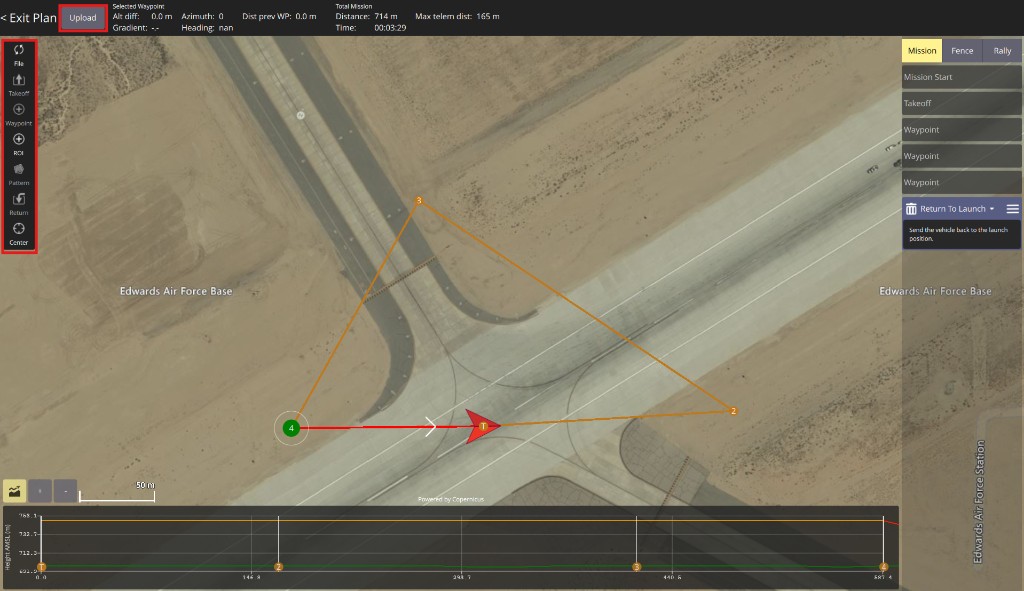
Create flight plan using options on the pannel on the left of the screen and press Upload button to upload the plan.
Exit planning mode and use the takeoff slider.